


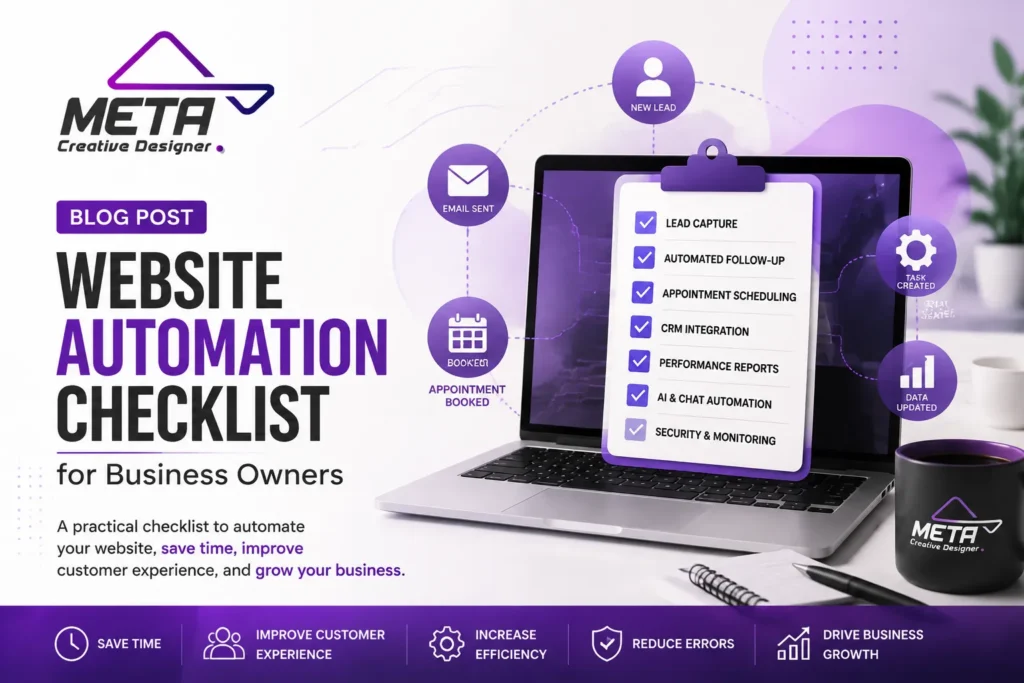

A contemporary business website shouldn’t just be a place to post business information. It must be able to keep records, respond to customers, help in marketing, collect important information, protect data of customers, and ease the team to carry out their typical tasks effectively.
Website automation links these activities via triggers, integrations, AI, and scheduled workflows. For example, if an email form is completed, it can create a new customer record, notify the sales team, send a follow-up email, and create a follow-up task.
However, a lot of tools without a strategy can complicate things, be costly, and make a website unreliable. Business owners need a workable checklist that is based around effective, rather than extraneous, automation.
Go over your existing website automation and see how it can help you save time, improve customer service, and grow your digital presence by using this list of website automation.
1. Define Your Automation Goals
When installing software or connecting platforms, decide on what you would like to get automated.
Firstly, identify repetitive tasks on the website that could be time-consuming or delaying. They can be answering common questions, responding to quote requests, scheduling appointments, updating customer records, creating reports, publishing content, or testing the site for functionality.
2. Automate Contact Forms and Lead Capture
When installing software or connecting platforms, try to figure out what you want to get automated.
First, identify repetitive tasks that can be done on the website but that require time and/or delay. These may include answering queries on a frequently asked questions page, answering quote requests, booking appointments, updating customer information, reporting, publishing content, or checking that the website is performing correctly.
Your automation objectives need to be specific and measurable. Rather than stating, “We need to automate our website,” establish a goal, e.g “We want to keep our website up to date with the latest news, reviews, and blog posts.”
- Be quick to respond to any web inquiries (less than 5 minutes).
- Qualified leads should automatically be added to the CRM.
- Use reminders for appointments when you have to make many.
- Get notified if the website or contact form doesn’t work.
- Create a weekly checkup report of website performance.
Clear goals guide you to the right tools and to evaluate whether your automation is creating value.
3. Create an Automated Lead Follow-Up Process
It’s just the start of the process of getting a lead. Inquiries can also not be answered in a timely fashion or followed up regularly, which leads to lost business opportunities.
Create a system that begins automatically upon request of a visitor for information. The first message can confirm that the inquiry was received and outline the next step and provide an estimated response time.
Other follow-ups may be:
- A booking link.
- A service overview.
- Relevant customer reviews.
- A portfolio/case study.
- Frequently asked questions.
- Prompt to fill in blanks.
Keep up to date with meaningful automated messages. It’s not acceptable for customers to get a barrage of hard-sell marketing after asking a simple question.
One member of the human team should also be responsible for each workflow. Any complaints, unusual questions, sensitive requests, and opportunities of high value should be handled on a one-on-one basis.
4. Automate Appointment Scheduling
Online scheduling is an excellent time-saving solution for businesses that depend on consultation, demo, interview, or service appointments.
A scheduling system can enable visitors to choose a time that is available to them without having to send back and forth several emails. Other possible messages include confirmation, calendar invites, reminders, rescheduling, and follow-up instructions.
Be sure to check:
- The hours that are available are accurate.
- Time zones are properly managed.
- Time between meetings is included in preparation time.
- Clearly stated cancellation and rescheduling policies.
- The team member designated to accept the appointment is given the appointment.
- The meeting place or video link is provided to customers.
- Personal and business calendars are in sync with no conflicts.
Test the entire booking process as a customer. It should be simple, mobile-friendly, and only have information that is necessary before the appointment.
5. Connect Your Website to a CRM
A customer relationship management system creates one point of data for website leads, customers, sales activity, and follow-up.
If there is no CRM integration, staff members might have to manually enter data from email messages into spreadsheets or other systems. This can result in duplicate records, missing information, and missed inquiries.
A helpful website-to-CRM workflow can capture:
- Customer name and contact information.
- Requested service.
- Date and time of submission.
- Lead source/campaign.
- Pages that have been viewed prior to submission.
- Assigned sales representative.
- Current lead status.
- Follow-up history.
Only collect data if there is a legitimate business purpose. Limit access to authorized users and regularly review the tools connected to the customers’ data that can alter it.
6. Set Up Customer-Service Automation
Simple questions and support can be provided via website automation, outside business hours.
Searchable FAQs, automated chat, order status updates, support-ticket routing, client portals, and self-service booking/cancellation are all helpful customer-service features.
The chatbot needs to know its limits and have a clear definition of its capabilities. It should offer a straightforward and uncomplicated method of reaching a person when the question is complicated or the automated one is of no assistance.
Review automated answers from time to time. These prices, services, availability, policies, contact, and hours are subject to change. When automated responses are not up to date, it can cause confusion and customer mistrust.
Develop a Content & SEO Workflow.
Automation can help the business owners to plan, publish, and update the content of their websites. It can be used for scheduling blogs, creating metadata, recommending internal links, compressing images, creating sitemaps, and reminding you to look into pages that are already dated.
The majority of content management systems will generate an automatically generated sitemap, which will support search engines in identifying business URLs considered important. Google recommends including the URLs that you want to appear in search results and says that the sitemap can be automatically created by web software.
7. Build a Content and SEO Workflow
Business owners can use automation to plan, publish, and keep their website content updated. It can help you to schedule blog posts, write metadata, suggest internal links, compress images, generate a sitemap, and remind you to update old pages.
A lot of content management systems (CMS) can produce a website map automatically to assist search engines in finding the URLs a company deems important. Google suggests adding to the sitemap the URL that you hope will be accessible on search and that the sitemap may be created by your website software.
The following are the elements your SEO automation checklist should contain:
- Build and update the XML sitemap.
- Look for broken internal/external links.
- Find missing page titles and meta descriptions.
- Track noindex pages being accidentally included.
- Detect content duplication or updates.
- Review missing image alternative text.
- Check structured data for errors.
- Track important keyword and landing-page performance.
Structured data can provide search engines with more information about a page and can even make eligible pages accessible for improved search capabilities. Google typically prefers the use of JSON-LD when set up is possible and easier to implement and maintain.
While AI can assist researchers in narrowing down topics and arrange original content, publishing numerous automatically generated pages with little value could violate Google’s spam guidelines. All drafts should be checked for accuracy, originality, relevance, and customer value.
8. Monitor Website Performance Automatically
When your website is slow or if it is unstable, visitors may not fill out forms, make purchases, or get in touch with your business.
Allow automated monitoring of page speed, uptime, errors on servers, broken features, and important user journeys. The Core Web Vitals are in focus at the moment, with the three main components being Largest Contentful Paint, Interaction to Next Paint, and Cumulative Layout Shift.
Your performance checklist should contain:
- Monitor important landing pages.
- Compress oversized images.
- See if there are any unnecessary plugins or scripts.
- Test mobile performance.
- Review forms following website changes.
- Be notified when there are server failures or downtime.
- Compare real-user data with the results of the testing tool.
- Check performance once tracking codes or animations have been added.
Automation should identify problems, but to really understand the problem and check that a proposed solution will not result in another feature failing, a developer may need to dig deeper into the problem.
9. Add Accessibility Checks
Think about access from the outset of design, development, content creation, and content maintenance.
Automated tools can be used to find some missing labels, empty links, contrast problems, and missing alt text. However, automated testing doesn’t mean that every customer will be able to use all of the site.
WCAG 2.2 provides guidelines to help make web content more accessible, and the W3C guidance recognizes automated and human testing of web content.
Here’s a list of items to check for accessibility:
- Add alternative text to informative images that conveys meaning.
- Provide the ability to complete forms with a keyboard.
- Use descriptive link and button labels.
- Keep adequate text contrast.
- Write headings in an appropriate logical order.
- Provide captions or transcripts for important media.
- Identify clearly the errors in the form.
- Don’t use color as the only means of expression.
- Test any trips that are important using keyboard navigation.
- Keep using human review as well as automated scans.
Accessibility audits should be carried out after major changes have been made to any critical template, form, navigation menus, or interactive elements.
10. Automate Security and Backups
Businesses can identify and sort out issues quickly through security automation.
Regular backup of your site, and you should ensure it’s not connected to the live server. The backups should include website files, the database, settings, and any other data required for restoring the website.
Security workflows are also available to monitor logon attempts, suspicious traffic, file changes, malware, spam submissions, certificate status, and software vulnerabilities.
The information that can be used to filter the traffic by web application firewalls includes IP addresses, URL paths, headers, and request content. Security platforms may also provide DDoS mitigation, rate limiting, and bot protection; however, these capabilities need to be set up and supervised accurately.
Be sure to include the following items in your security checklist:
- Scheduled backups.
- Tested restoration procedures.
- Software and plugin updates.
- Multi-factor authentication.
- Limited administrator access.
- Login-attempt monitoring.
- Anti-spam and anti-bot.
- SSL certificate monitoring.
- Security alerts are communicated to a responsible person.
- Documented response plan.
The value of a backup is only as great as its ability to be recovered. Assume that not all backups are complete and schedule for regular restoration tests.
11. Automate Analytics and Reporting
Don’t build large dashboards; business owners should use website analytics to inform them when they make decisions.
Create reports for valuable business actions such as quotes, phone calls, purchases, bookings, newsletter sign-ups, downloads, and completed contact forms.
Google Analytics has features for analyzing unusual fluctuations or new patterns. Insights conditions are also reconfigurable so that the business can be notified when they change.
A good reporting workflow can auto-summarize:
- Website traffic.
- Top landing pages.
- Lead or sales conversions.
- Marketing campaign sources.
- Form completion rates.
- Mobile vs. desktop performance.
- Pages that have unusual traffic fluctuations.
- Abandoned booking/checked-out steps.
- Technical problems with conversions.
Send various reports to various people. The business owner might need a monthly report, the marketing team might need campaign data, and the developer might need technical alerts.
12. Document and Review Every Automation
All automated workflows should be documented and have an owner.
Record:
- What are the reasons for the automation?
- What tools are linked together?
- The information that is passed on.
- Who receives notifications?
- What if it doesn’t work out?
- How the workflow can be suspended.
- Who can make changes to it?
- Last tested date.
Review automations at least every couple of years, as well as whenever services change, staff changes, software changes, privacy policies change, or the sales process changes.
Remove any duplicate, out-of-date, or inactive workflows. If there is too much automation, you can end up with an inconsistent message, software costs that aren’t needed, and a confusing customer experience.
Final Website Automation Checklist
Before you believe that your automation tool is set up, check whether your website can:
- Collect and track leads.
- Send immediate confirmations.
- Pass on inquiries to the right person.
- Schedule an appointment or reminders.
- Integrate to CRM.
- Take care of some customer needs.
- Efficiently publish and review content.
- Monitor search visibility and SEO.
- Monitor performance and downtime.
- Check accessibility.
- Perform and test backups.
- Detect security problems.
- Measure meaningful conversions.
- Produce useful reports.
- Raise significant matters to a human.
Conclusion
Website automation can assist business owners to conserve repetitive work, to react to clients faster, to protect crucial data, and also to create websites and an active system of the business.
It’s not about automating everything. Begin with repeatable, measurable, and meaningful processes in the customer journey. Test each workflow thoroughly, assign responsibility, and have a manual backup process in place if automation fails.
The most successful website automation plan is a combination of good technology and a human touch. Things that are repetitive are automated, but relationships, creativity, accuracy, privacy, and important business decisions are still done by humans.
Frequently Asked Questions
What is website automation?
Website automation uses AI, integrations, and workflows to complete repetitive tasks with less manual effort.
Which website tasks should business owners automate first?
Start with lead capture, confirmation emails, appointment scheduling, follow-ups, backups, and performance monitoring.
Can website forms connect directly to a CRM?
Yes. Form submissions can automatically create contacts, assign leads, record sources, and schedule follow-up tasks.
Does website automation improve customer service?
Yes. Automated FAQs, chat, booking systems, reminders, and support routing help customers receive faster assistance.
Can website automation support SEO?
Yes. It can monitor broken links, missing metadata, indexing issues, outdated content, and website performance.
Is AI-generated website content safe to publish?
AI content should always be reviewed for accuracy, originality, relevance, tone, and customer value before publication.
Can website security and backups be automated?
Yes. Businesses can automate backups, uptime monitoring, security scans, software updates, spam protection, and alerts.
How often should website automations be tested?
Automations should be tested regularly and whenever the website, software, staff, services, or business processes change.
Is website automation suitable for small businesses?
Yes. It can save time, improve lead response, reduce missed opportunities, and simplify website management.
Should every website task be automated?
No. Automate repetitive tasks while keeping people responsible for strategy, customer relationships, privacy, accuracy, and important decisions.